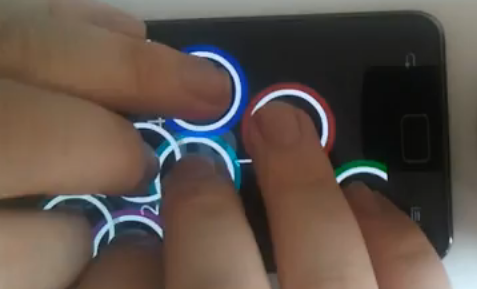
Check out this Samsung Galaxy S II Multi Touch video. You can press all 10 fingers on the screen at once, with accurate tracking even when fingers are close together. That’s what I call true multi-touch. READ MORE »
Monthly archives for April, 2011
Samsung Galaxy S2 Multi-Touch
First week on the Android Market
It’s over a week now since I uploaded the finished version of Tap That! Number to the Android Market. Some people have been asking how the app is going now, so I thought I’d share with you some statistics and figures from the past week or so.
Samsung Galaxy S II vs. HTC Sensation – Which is best?
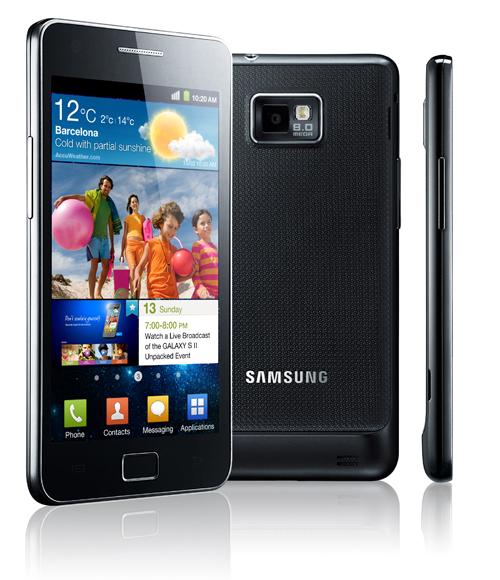
The two hottest smartphones announced this year are the Samsung Galaxy S II, and the HTC Sensation. Both devices have fantastic specs and a huge 4.3″ screen. But at the end of the day, which one performs best? Which one should you buy? Read on for a full comparison, including a color-coded table showing where each phone wins in specifications. READ MORE »
How to use ScoreNinja for Android App High Scores
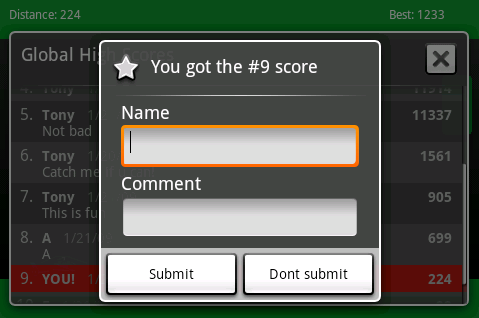
My latest application, Tap That! Number uses the ScoreNinja library to integrate global high scores. This library is very easy to include with only a few lines of code. Other solutions such as ScoreLoop try to bundle a full social framework, but ScoreNinja does just one thing – global high scores. In this post I’ll teach you how to integrate ScoreNinja into your own Android app. READ MORE »
Introducing: Tap That! Number
My first Android app is now published and live on the Android Market! As I mentioned in an earlier post, this is a casual game and my first attempt at integrating the AdMob SDK into an Android app.
Tap That! Number for Android
Download from the Android Market
Download from AppBrain
Download from SlideME
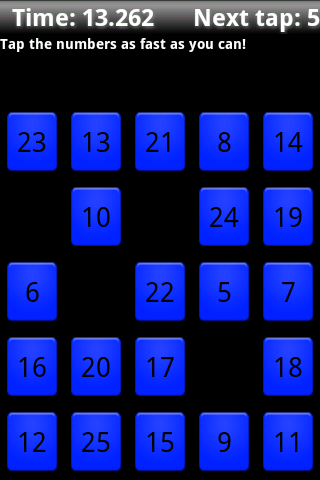
The aim of the game is simple – to tap all the numbers from 1 to 25 in sequence, in the fastest possible time.
This app is actually a great starting point for developing an Android game. While the concept is simple, this implementation makes use of custom views, UI themes, threading, and integration of a third-party high score system. It has several activities, and involves basic application life-cycle management (especially handling the threads). READ MORE »
A developer success story
The developer of Camera+ (for iOS devices) recently announced that their app has hit 2 million sales. This figure is a huge success, both numerically and financially. To celebrate this milestone, the developers have decided to share some of their stats publicly, including overall sales volume and revenue from in-app purchases.
One of the most interesting revelations in the blog post is the upgrade numbers. Over half of the people who had downloaded Camera+ also upgraded to the latest version when it was released. This indicates a high level of user engagement – users did not simply “download and discard” which is a common situation in the mobile app world.
Another noteworthy observation: revenue from in-app purchases was relatively low, compared with overall app purchases from the App Store. Only 98,000 in-app effects were sold in total – compared with 2,000,000 app purchases. At $0.99 each, these in-app purchases added up to a tiny part of the overall app revenue.
This is significant for any developers looking to make money from in-app purchases on Android. The target market for Android and iOS developers is relatively similar, so you can expect similar results in publishing an app to the Android Market. Referring to the use of in-app purchases as a primary revenue model, the Camera+ developers concluded:
it’s very unlikely that this can be an effective business model
So there you have it – in-app products might be useful to give a welcome boost to your revenue, but don’t base your entire business model around them. Better to stick with the tried and tested methods – paid apps, ad-supported, and “freemium”.
How to run Android Market on the Emulator
During development, it is often useful to be able to test the Android Market from a device other than your own. However, by default the Android emulator doesn’t include the Android Market – nor offer an easy method of installing it. This tutorial will show you how to setup an Android Virtual Device (AVD) running Android 1.6 and the Market application.
Getting Started
This tutorial assumes you have the Android SDK installed and functioning, and have downloaded at least the basic Android 1.6 target. If not, complete these steps before continuing.
First, you’ll need to download the Android 1.6 system image file from http://www.4shared.com/file/165624746/fc72c3ed/system.html (this can also be found on the HTC website – look for Android Dev Phone 1). This is close to 60MB, so it might take a while to download.
While you’re waiting, start the Android SDK and AVD Manager, and create a new virtual device. Choose whatever name you like, and set the target as “Android 1.6″. I recommend selecting a 2GB SD card, and booting up the virtual device just to test and make sure it runs correctly.
Replacing the System Image
Now find the folder where your Android 1.6 system image is stored (not the folder for your AVD). Under Linux this will be <android-sdk-folder>/platforms/android-1.6/images/. Notice there is a system.img file in this folder. Copy this to a backup location, and paste in the file you just downloaded. This replaces the default Android 1.6 virtual machine with our new custom image, which includes the Android Market pre-installed.
Setting up the device
Using the AVD Manager to start up the virtual device. If all goes well, it will boot directly into Android, and let you choose to setup the device. Click through the tutorial, and when given the option to enter your Google account, choose “Skip“. We’ll complete that part later*. Finish the wizard.
Now you should see the home screen. Click the grey arrow at the bottom of the screen, and find the Android Market icon. Click to launch it.
Now you can fill in your Google account details. Use a different account than you have on your primary device (you might like to create one specifically for testing Android apps). Accept the terms and conditions, and you should be able to browse and download applications just like on a physical Android device!
Note: The Android Market will automatically update itself some time after linking to your Google Account. Don’t be surprised if it suddenly closes without warning – just wait a while and start it up again to continue downloading apps.
* When I tried to complete the initial setup wizard, I got stuck at a screen saying “slide out your keyboard to continue”. By skipping this step, and setting up the Google account later on I was able to avoid the issue.
Other resources:
http://www.howtogeek.com/howto/21862/how-to-enable-the-android-market-in-the-google-android-emulator/
http://techdroid.kbeanie.com/2009/11/android-market-on-emulator.html
Android Market: First day download stats
A couple of days ago I uploaded a draft of my Android app to the market, to test the signing and publishing process. I was also curious as to exactly how many people were actually interested in downloading an app of this description. So I uploaded the draft (which is not functional in any useful way), added a title and description, as well as a few screenshots. I clearly stated in the description this is an alpha release and not intended for download. Clearly it was not the most attractive app to download by any means. But it’s interesting to see the downloads from the first day.
One day after uploading my draft to the Android Market, 99 people had downloaded the app. Of those, 57% were “active users”, and two people had submitted error reports for an edge condition which has since been resolved.
I never expected this many people to download my draft – especially not since it was labeled “alpha”. I didn’t promote it in any way – just uploaded it with a decent icon, title and description. If 100 people will download an app labeled “alpha” with no reviews or comments, how many more would download an actual finished app?
Another stat worth listing is the Ad impressions. I had one ad unit included in the main menu of the app. This single ad unit generated approximately 300 ad impressions, and 1 click. Again, this is in the first day after uploading an unfinished draft to the Android Market. I would expect to see many more downloads (and thus more ad impressions) from a finished product, with a few good reviews on the Market.
How to Make Money with Android
So you want to make money with Android? Sell your Android apps to make a profit? Generate enough revenues from your Android apps that you can quit your job and live off the earnings? Or just learn how to monetize your existing apps? You’ve come to the right place.
This blog will be a journal of my progress as I start from scratch in developing profitable Android apps. I’ll be documenting my discoveries, as well as writing up some general advice for making money. It’ll be a rough journey, and possibly a slow one, but I aim to reach an initial goal of $1000 per month from Android apps. This includes a few revenue streams:
- Android Market sales (paid apps)
- In-app advertising (AdMob)
- Website revenue (this site!)
I’ve set the initial goal relatively low for a reason – I believe that having an achievable medium-term goal, and basing my activities around that goal, is the surest way to success. I could have aimed for $1000 a week, but that would be too far in the future. $1000 per month is equivalent to roughly $230 per week, or $34 per day – which is certainly achievable with some effort.
So how to I aim to achieve this? Firstly: build an app. =) It may seem obvious, but the first step towards making money with Android is to actually build a worthwhile app. Not just a throw-away “Hello world” style program, but something really useful. It doesn’t need to be complex – some of the most popular games for Android are really quite basic. But it does need to be a complete application, and have a purpose. Don’t just start writing for Android for the sake of making money. It will be extremely difficult to write a good Android app with money being your sole objective. You need to find a problem to solve, or a need to be met. Then, build “an app for that”.
I’ve actually got dozens of ideas – far too many to write myself, and have been sorting through some prototypes in recent weeks. I have now decided on the concept which I’ll be implementing for my first public app. It’s staying under wraps for now, but I can say one thing: my first Android app published on this site will be a Casual Game.
So I hope you’ll join me for what will surely be a profitable adventure, and a beneficial exercise in Android development. You can subscribe by email or RSS, and keep up-to-date with my latest progress. Feel free to leave a comment with any questions or suggestions you might have – I’ll be learning along with you, and I’d love to get some feedback on what you do (and don’t!) like about this site.
See you soon with the latest info on Making Money with Android!


Recent Comments